Mobile Inspector
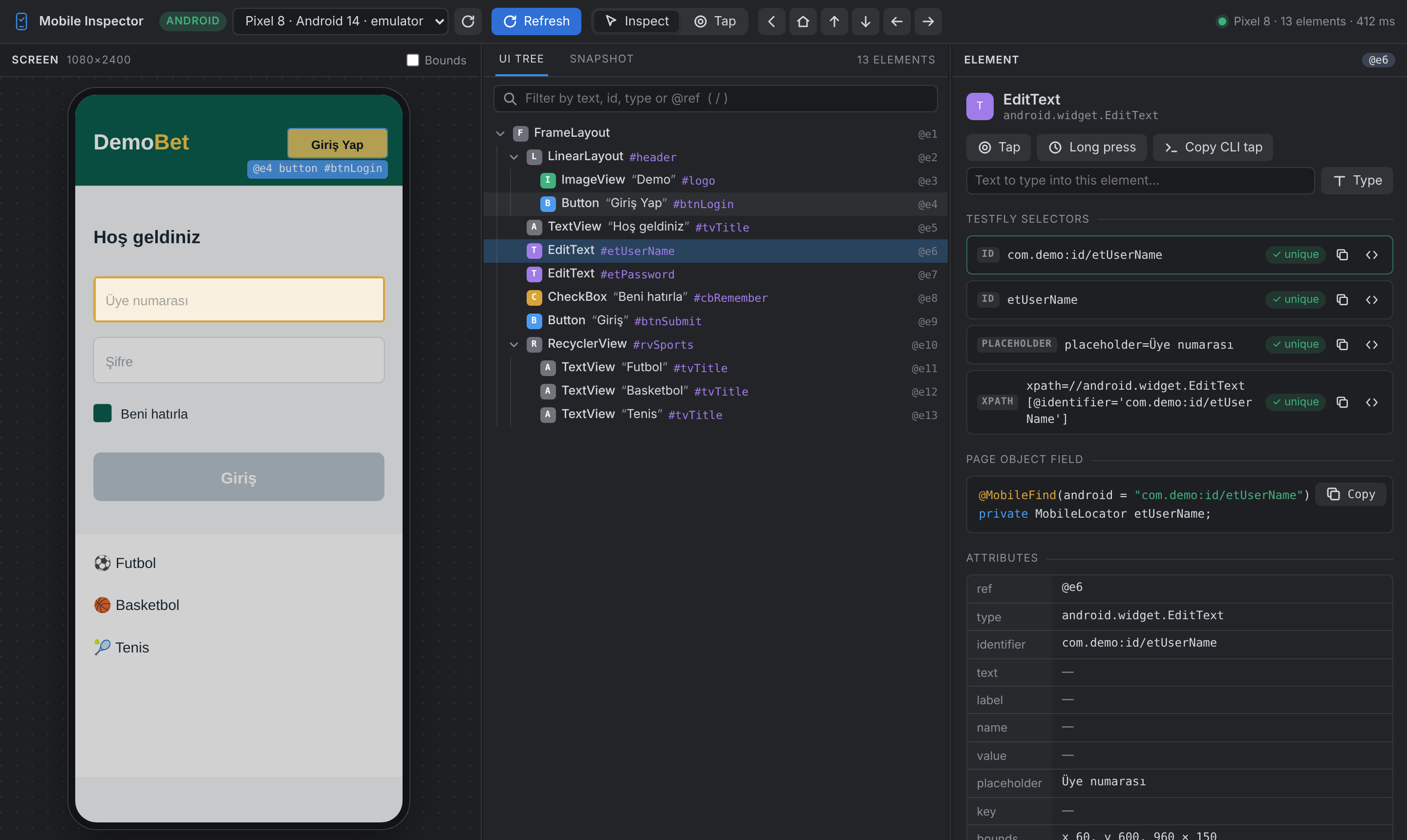
The Mobile Inspector is an Appium-Inspector-style tool built for TestFly and mobilecli. It runs inside your IDE, as a VS Code extension and an IntelliJ IDEA plugin with the same interface, and helps you write page objects:
- the device screen, with the element under the cursor outlined;
- the UI tree with mobilecli's
@eNrefs, and mobilecli's text snapshot; - every attribute of the selected element;
- ranked TestFly selectors with their match count on the current screen, ready to paste as
@MobileFindfields; - tap, type, swipe and hardware buttons on the device;
- Record mode: use the device and get a page object with the steps you took.
Install
Both packages are in the repository, so no marketplace access is needed.
VS Code (1.85 or newer):
code --install-extension tools/vscode-mobile-inspector/dist/testfly-mobile-inspector-0.2.0.vsix
or Extensions view → … → Install from VSIX….
IntelliJ IDEA (2024.1 or newer, Community or Ultimate, and other IntelliJ-based IDEs): Settings → Plugins → ⚙ → Install Plugin from Disk… → tools/intellij-mobile-inspector/dist/testfly-mobile-inspector-0.2.0.zip, then restart the IDE. Uninstall an older version first.
Both need mobilecli 1.0.20 or newer and a booted simulator, emulator or connected device. On iOS install mobilecli's agent once per device (mobilecli agent install --device <udid>). The inspector starts mobilecli server start itself when no server answers on http://localhost:12000.
Open
- VS Code: the TestFly Mobile icon in the activity bar (left) → Open Mobile Inspector, or the command palette → TestFly: Open Mobile Inspector.
- IntelliJ: the TestFly Mobile tool window (left) → Open Mobile Inspector, or Tools → TestFly: Open Mobile Inspector. The inspector opens as an editor tab.
With one online device it is selected and read at once; otherwise choose it in the device picker.
The window
| Area | What it shows |
|---|---|
| Toolbar | device picker with platform badge, Refresh, the click mode (Inspect / Tap / Record), device controls, status and the last read time |
| Screen | the screenshot; hover outlines an element, a click selects (Inspect) or taps (Tap, Record). Bounds outlines every element |
| UI Tree | the element tree with types, texts and @eN refs; filter by text, id, type or ref; arrow keys move and expand |
| Snapshot | mobilecli's text snapshot of the screen (mobilecli snapshot), with Copy |
| Recorded | the code of Record mode (see below) |
| Element | the selected element: actions, TestFly selectors, page object field, attributes and state |
The panes can be resized by dragging their borders; the sizes, mode and expanded tree nodes are remembered.
Finding a selector
Select an element on the screen or in the tree. The Element pane lists every selector TestFly can use for it, best first:
- test id (
resource-id/ accessibility identifier), full and short form; - role with name (
role=button;name=Sign in); - label, placeholder, text;
- XPath by id or text, or by position as a last resort.
Each selector shows how many elements it matches on the current screen: ✓ unique, N matches or no match. The XPath counts use the same tree TestFly evaluates, so they agree with the framework. The best unique selector is highlighted and shown as a ready field:
@MobileFind(android = "com.demo:id/btnLogin")
private MobileLocator btnLogin;
Copy a selector, the field, or any attribute value (click it). Field names come from the id or the label (Giriş Yap → girisYap). Run the inspector once per platform and merge the ios and android selectors into one @MobileFind.
Acting on the device
- Element pane: Tap and Long press the element's centre; Type taps the element and types the text from the field next to it (Enter also types); Copy CLI tap copies the matching
mobilecli io tapcommand. - Tap mode (
T): a click on the screen taps that point on the device. - Toolbar: Back (Android), Home, and swipe up, down, left and right across the middle of the screen. Swipe up scrolls a list down; swipe left moves a carousel forward.
After every action the screen is read again (setting below). The first read of a device takes longest; later reads fetch the tree and a compressed screenshot in parallel and show the picture as soon as it arrives.
Record mode (code generation)
Switch to Record (E; the screen gets a red frame). Now everything you do runs on the device and becomes a step:
| You do | Recorded as |
|---|---|
| click an element on the screen | field.tap(); |
| Long press in the Element pane | field.longPress(); |
| Type in the Element pane | field.fill("text"); |
| click a point without an element | screen().tap(x, y); |
| a swipe button | screen().swipe(SwipeDirection.UP); |
| Back / Home | device().pressButton("BACK"); |
The Recorded tab (its badge counts the steps) shows a page object with one @MobileFind field per element, using the best unique selector, and the steps in order:
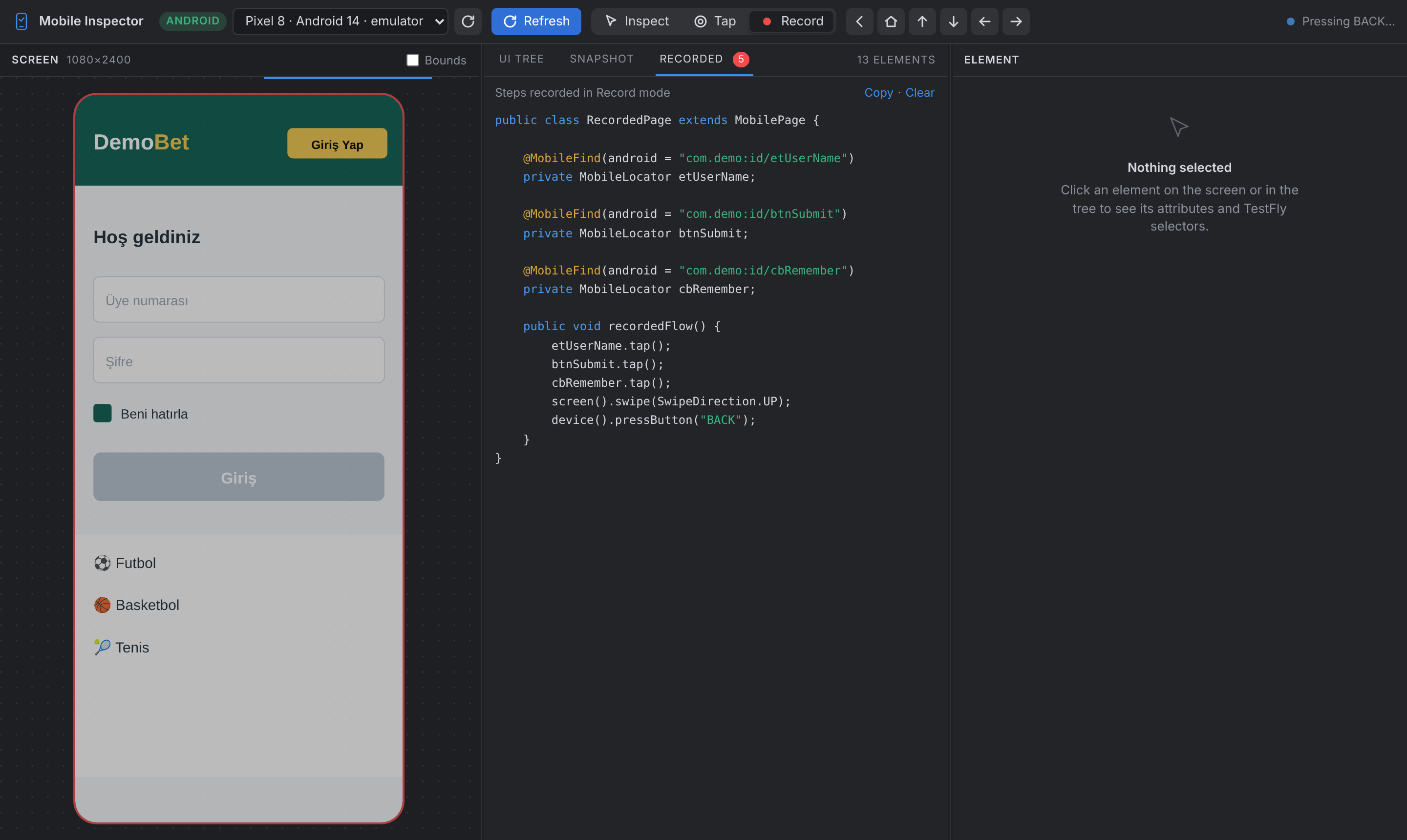
public class RecordedPage extends MobilePage {

    @MobileFind(android = "com.demo:id/etUserName")
    private MobileLocator etUserName;

    @MobileFind(android = "com.demo:id/btnSubmit")
    private MobileLocator btnSubmit;

    public void recordedFlow() {
        etUserName.fill("12345");
        btnSubmit.tap();
        screen().swipe(SwipeDirection.UP);
    }
}
Copy puts it on the clipboard, Clear starts over. Treat it as a first draft: rename the class and fields, split recordedFlow() into intent methods that return the next page, add @WaitFor to a field that marks the screen, add assertions, and add the other platform's selectors. Typed text is recorded as you typed it; replace credentials with environment variables.
Keys
| Key | Action |
|---|---|
R | refresh the screen |
I, T, E | Inspect, Tap, Record mode |
/ | filter the tree |
↑ ↓ ← → | move in the tree, collapse / expand |
Esc | clear the selection |
Settings
VS Code (settings.json) | IntelliJ (Settings → Tools → TestFly Mobile Inspector) | Default | Meaning |
|---|---|---|---|
testflyInspector.serverUrl | mobilecli server URL | http://localhost:12000 | the mobilecli server (JSON-RPC at /rpc) |
testflyInspector.mobilecliPath | mobilecli path | mobilecli | binary used to start the server; set the full path when the IDE's PATH lacks it |
testflyInspector.autoStartServer | start the server automatically | true | start a local server when none answers (never for remote URLs) |
testflyInspector.autoRefreshAfterAction | refresh after actions | true | read the screen again after tap, type, swipe and buttons |
A server the inspector started is stopped when the inspector closes; a server that was already running is left alone.
Troubleshooting
| Symptom | Fix |
|---|---|
| "mobilecli server … is not reachable" | mobilecli is not installed or not on the IDE's PATH: set the mobilecli path setting, or start mobilecli server start yourself |
| No device in the picker | boot a simulator/emulator (mobilecli devices must list it as online), then the reload button next to the picker |
| iOS: every read fails naming the agent | mobilecli agent install --device <udid> |
| IntelliJ: "needs JCEF" | the IDE runs on a runtime without the embedded browser; switch the boot runtime to a JetBrains Runtime with JCEF (Help → Find Action → Choose Boot Java Runtime) |
| The extension is missing from the activity bar | reload the window (VS Code) or restart the IDE (IntelliJ) after installing |